Activity Timeline
Activity is the day-by-day record of what a person actually worked on: every recorded segment with an AI-written description, the app and site, and a productivity colour.
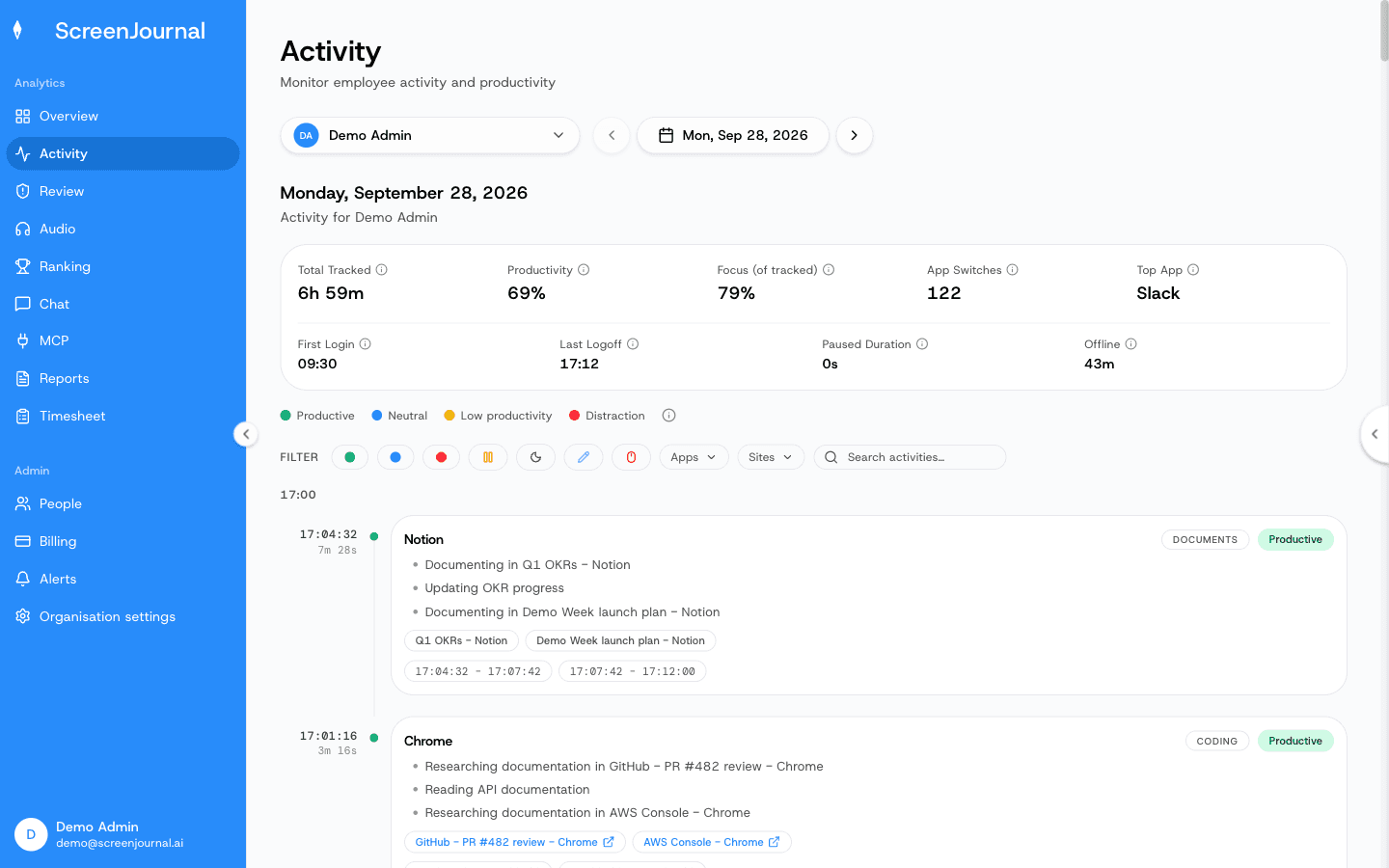
Picking a person and a day
What you see: a searchable person selector (scoped to who you're allowed to see; an employee with no reportees sees only themselves and no selector), and a date control with previous / next arrows and a calendar.
The day header
What you see: five tiles — On screen, Productivity (the official day score, the same number the Excel reports use), Focus (on screen) (productivity measured against the time actually on screen, rather than the 8-hour workday), Timeline entries and Top App — followed by a presence row: Clocked in, Clocked out, Paused and Offline.
Filters
Under the header sits the colour legend (Productive, Neutral, Distraction; yellow low-productivity rows are folded into Distraction) and a row of filter chips:
- Productive / Neutral / Distraction — score buckets. Distraction also includes low-productivity rows so "show me the problem time" is one click.
- Paused and Asleep — the two kinds of non-work row.
- Corrected and Manual — rows an admin re-scored, and entries added by hand.
- Apps and Sites — tick apps or web domains to hide or show them.
- Search — free text over titles and descriptions.
Reading the timeline
Entries are grouped by hour, newest first. Each card shows a title such as "Editing README.md", the app (and site for browser work), the time range and duration, and a description; consecutive segments in the same app fold into one card with Show N segments. Other things you will see:
- Tracker Paused and Device Asleep / Offline rows for gaps.
- Nested away time inside a card ("No keyboard or mouse input during this range").
- Manual Entry rows — time a member or manager explained by hand.
- A Corrected mark when an admin overrode the score.
- A mouse icon with "Possible mouse jiggler detected" when the pointer trail looked artificial (see Review).
- Redacted segment or "Capture skipped" when activity was permanently redacted, or a sensitive-app exclusion stopped capture for that window.
If a day is empty the page says "No activity recorded — make sure the desktop app is running".
Actions on a segment
Hover a card for its actions. Which ones appear depends on your role and your organisation's settings:
- Play recording — plays the saved video for that segment. Only present when the desktop policy keeps recordings (Record + Save) and a clip exists.
- Correct score (pencil, owners and admins) — set the segment to Distraction, Neutral or Productive. This corrects that one segment for that one person; it is not a rule and does not re-score other days. For a standing rule ("time in Figma is always productive for Design") use Organisation settings → Desktop policy → Correction rules, which applies to new activity as it arrives.
- Redact — permanently deletes the segment from the timeline and every derived report, with an optional reason. Who may redact whom is set under Organisation settings → General → Redaction; nobody can by default. Segments already retained as alert evidence are exempt.
- Add a reason — on a paused, offline or away stretch, when the desktop policy allows manual entries. Say what was happening and save it as Unproductive or Productive. Away time that runs across several analysis chunks shows as one Away card, and its reason covers the whole stretch — including the away time at the end or start of the cards either side. Time flagged as a mouse jiggler is never folded into a neighbouring away stretch. It is listed on its own as Jiggler on your own timeline and on a manager's view of it alike. Nobody can add a reason over their own jiggler-flagged time: a stretch that is jiggler-flagged from end to end never offers the button on your own timeline, however it may look on someone else's. A stretch that mixes jiggler time with real work or ordinary away time still takes a reason as usual, on either timeline — the entry is written around the jiggler minutes, never over them. The time range can't be edited; the entry is placed around tracked activity, never over it, and can't be deleted afterwards — only its reason changed.
Add reasons, the button beside the date, appears when two or more stretches still need a reason. Tick the ones that belong together (nothing is ticked for you), type one reason and pick one verdict. Each stretch is saved in turn; any that fail stay ticked so you can try again.
Where else the timeline appears
The same cards, with the same actions, are embedded in the Ranking drill-down (click a day on a member's chart) and on the Review page.