ScreenJournal FAQ
Updated on 14 September 2026
This page answers the most common questions about ScreenJournal: what it is, how it reads work and deletes the raw screen data by default (a manager can opt in to Evidence Mode to keep video evidence for up to 3 months), what it generates, how employee privacy works, and how it differs from time tracking and employee monitoring tools. Every answer is written to stand alone.
About ScreenJournal
What is ScreenJournal?
ScreenJournal is an AI work visibility tool that reads on-screen work as it happens, turns it into a detailed timeline of what each person actually did, and then, by default, deletes the raw screen data. Timelines accumulate into a searchable chronicle of everyone's work history, and from them ScreenJournal generates timesheets and reports automatically and drafts standup summaries on request, answering questions about any of it in plain English.
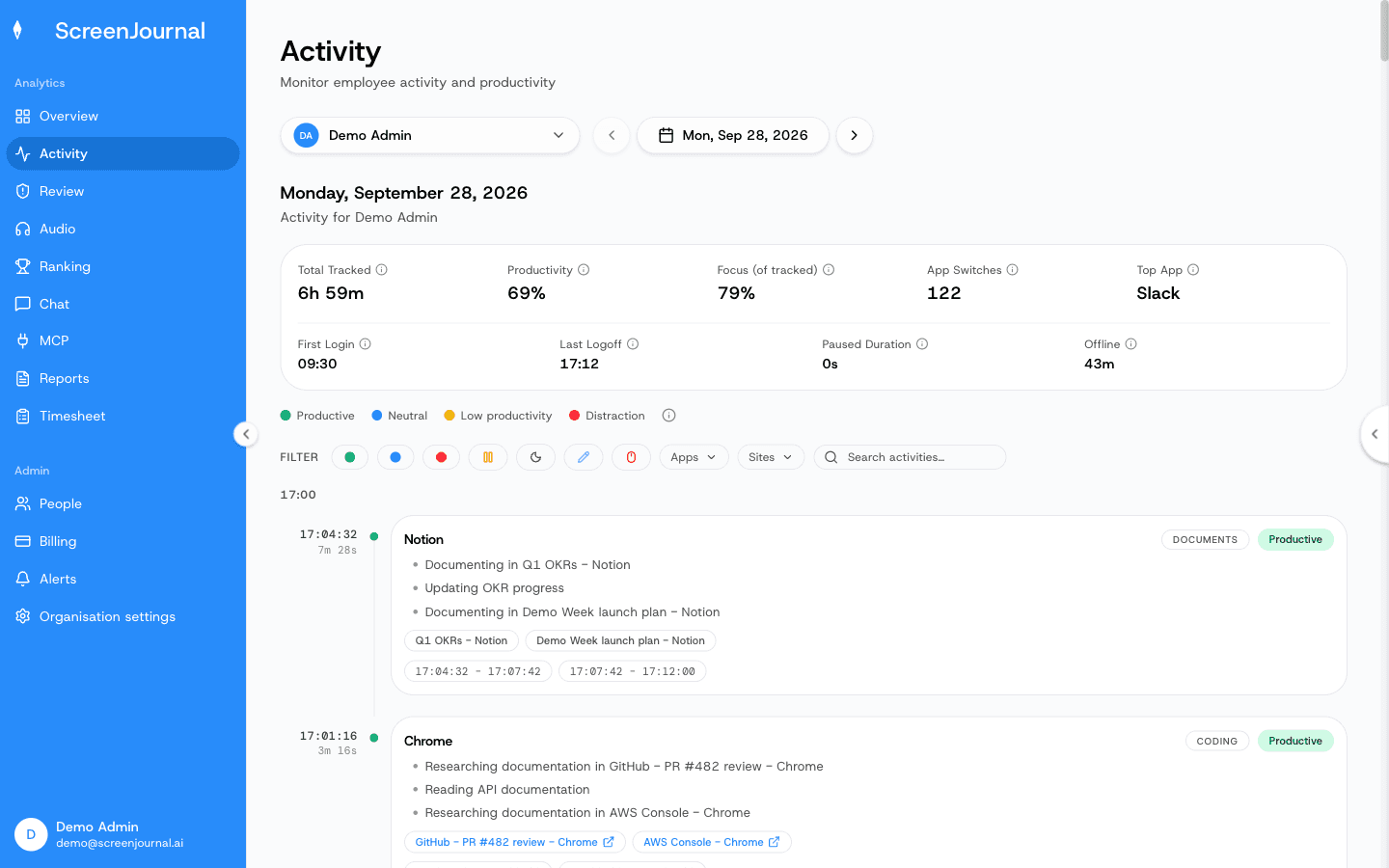
Proof: the Activity page, one person's day as scored segments with the app, time range, duration and an AI-written description; hover a segment for Correct score, Play recording and Redact, each gated by role and policy.
Who is ScreenJournal for?
Any industry where work happens on a computer. It suits managers of remote, hybrid, offshore and BPO teams who need accurate timesheets and operational truth without micromanaging, and it suits employees who want their real output recognised and their work history searchable.
What is a work timeline?
A work timeline is a detailed record of what someone actually did during the workday, written by AI from their screen activity. Each entry shows the app, what was done, how long it took and a productivity score. It is the source every other ScreenJournal output (timesheets, reports, the chronicle) is generated from, and standups are drafted from it on request. The work timelines page covers the full anatomy.
Proof: the Activity page, one person's day as scored segments with the app, time range, duration and an AI-written description; hover a segment for Correct score, Play recording and Redact, each gated by role and policy.
What is the work chronicle?
The chronicle is every timeline, kept and made searchable. It turns the company's work into an organisational memory: employees can search their own past ("where did I fix that webhook bug"), colleagues can learn how another person or team does a piece of work, and managers can trace how something was actually done. Questions are asked through the ScreenJournal chat or MCP, subject to permissions, instead of interrupting people. The chronicle keeps the most recent 12 months of derived work history.
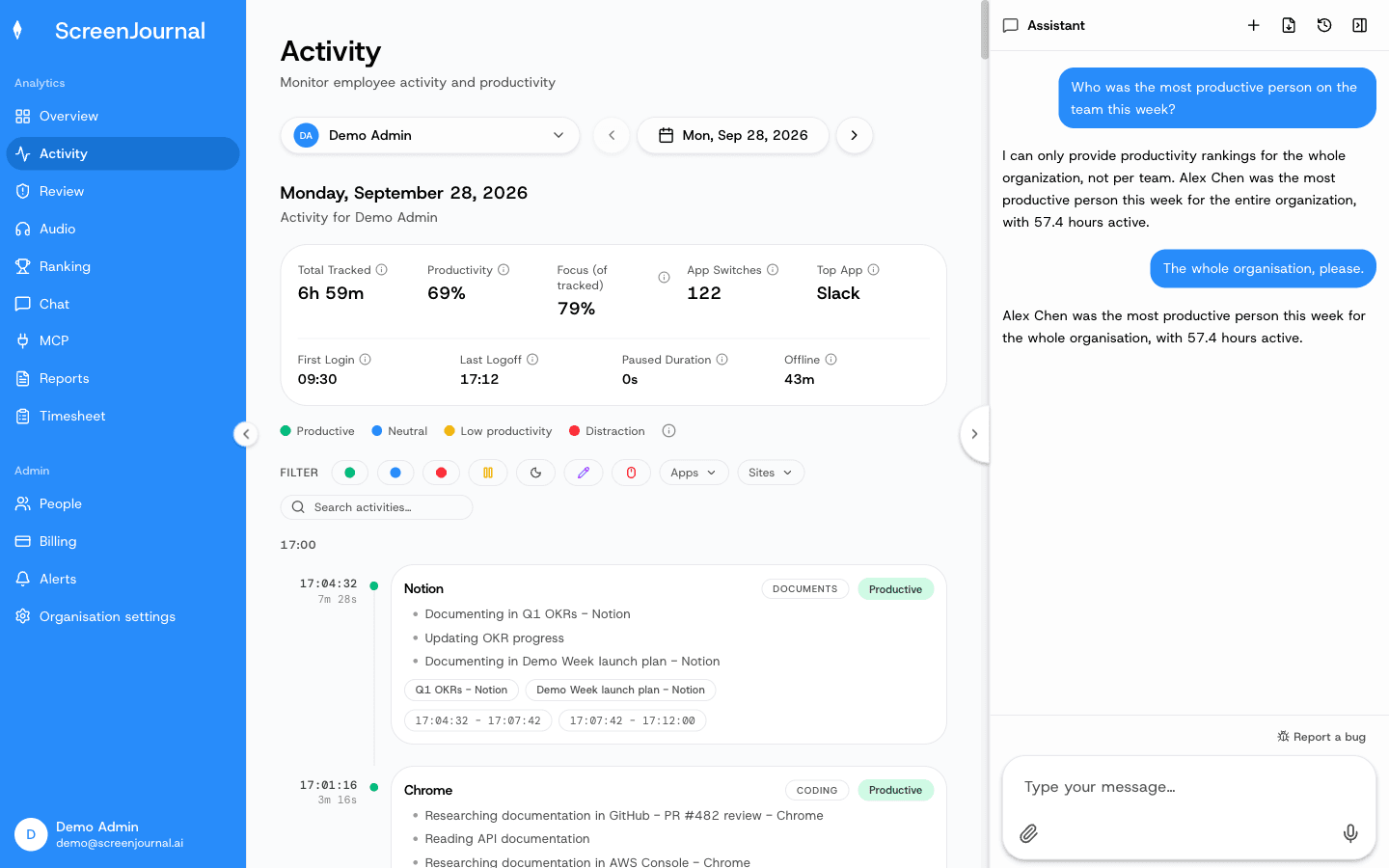
Proof: the Assistant chat (Ask AI) open beside the dashboard, showing the data it consulted before answering.
How is ScreenJournal different from time tracking?
Time trackers count hours and approximate effort from mouse and keyboard activity, which is inaccurate and easy to cheat with jigglers. ScreenJournal reads what was actually produced inside those hours. Someone who ships great work in two focused hours is finally visible, and someone gaming a timer is not.
How is ScreenJournal different from employee monitoring software?
Monitoring software stores screenshots or video and leaves a manager to interpret an archive. ScreenJournal reads the work, keeps the insight and, by default, deletes the footage. There is nothing to scrub through and no footage archive to leak unless a manager has opted in to keep video evidence.
How ScreenJournal works
How does ScreenJournal work?
Three steps. It records screen activity as short-lived video while work happens. A frontier AI model analyses that video to understand the work and measure output. By default the video is then deleted immediately during processing. What remains is the timeline, the chronicle, the numbers, and answers.
What is derive-and-discard?
Derive-and-discard means the screen is read only long enough to derive understanding, then the footage is discarded. The transient capture is video: by default it exists for the moment of analysis and is not stored. No screenshots are taken at all.
Does ScreenJournal store screenshots or video?
Not by default. It takes no screenshots; the transient capture is video, and that video is deleted during processing. A manager can opt in to keep video evidence for the organisation or a team, and those recordings are stored for up to 3 months. PII is removed from what is kept, and segments can additionally be redacted by whoever the organisation's redaction settings allow.
Proof: the Activity page, one person's day as scored segments with the app, time range, duration and an AI-written description; hover a segment for Correct score, Play recording and Redact, each gated by role and policy.
Does ScreenJournal log keystrokes?
No. It reads work output, not keystrokes.
What does ScreenJournal capture?
Apps and sites on the organisation's privacy exclusion list, such as banking, payroll, HR and health, are never captured. Anything else can be redacted by whoever the organisation's redaction settings allow, including the employee themselves when that box is ticked.
Features
What are AI timesheets?
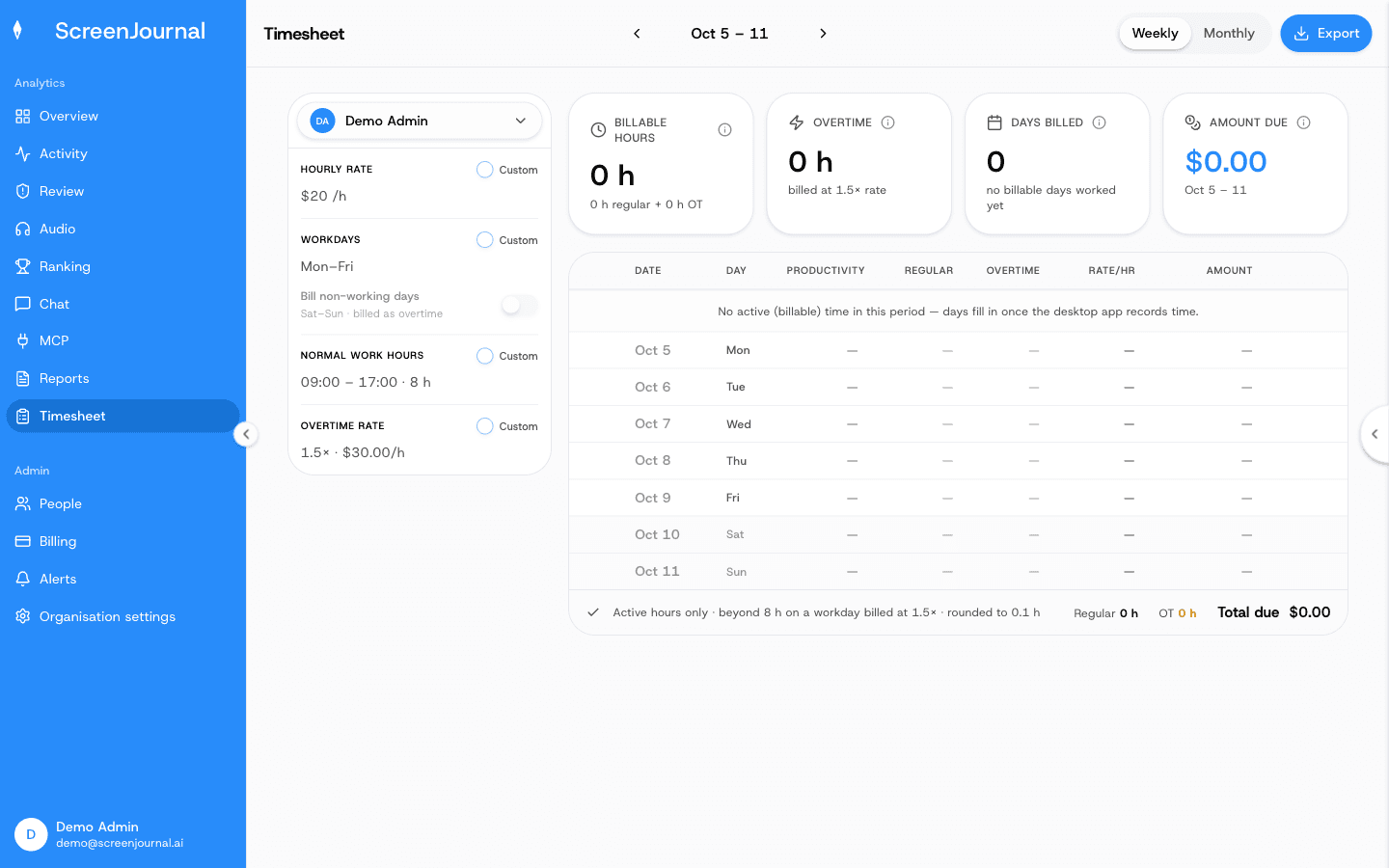
Timesheets computed from tracked hours rather than typed into a timer. The Timesheet page shows, per person and per week or month, billable hours, overtime, days billed and the amount due, from an hourly rate and the working calendar. Each day opens into the segments behind it, any day or segment can be excluded, and the period exports as CSV for payroll or invoicing.
Proof: the Timesheet page, with billable hours, overtime, days billed and amount due for one person and a row per day that opens into its segments.
What reports can ScreenJournal generate?
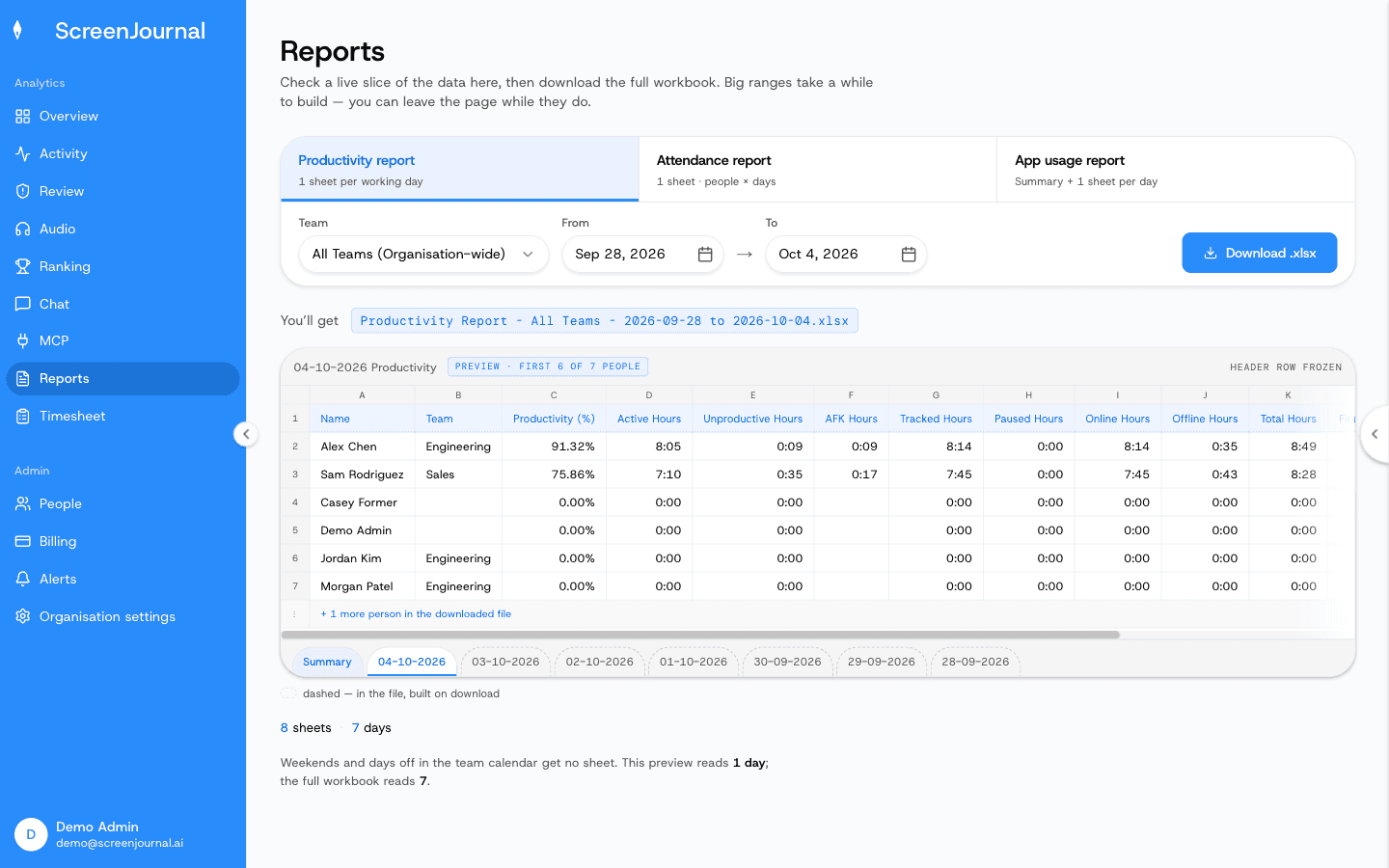
Three downloadable Excel workbooks: a productivity report (one sheet per working day plus a summary, up to 180 days), an attendance report (people by days, up to 45 days) and an app usage report (time per application, up to 31 days), each previewed before download. The Overview dashboard and the weekly Ranking show the same numbers on screen. For anything a workbook does not cover, ask the AI assistant, in the product or through the ScreenJournal MCP, and it answers from the same derived record.
Proof: the Reports page, with the report chooser, scope and date range, and a live preview of the workbook before download.
What is the ScreenJournal AI assistant?
A built-in chat that answers questions about work in plain English: who is on track, who is stuck, what is about to slip, where the billable hours went, and how something was done last month. It answers from the derived timeline and chronicle, not from stored footage.
Can employees search their own work history?
Yes. The chronicle keeps each person's derived work history searchable. Ask "what did I do on the payment bug in March" and get the answer with context. The raw footage is still deleted by default; what is searchable is the understanding, not screenshots.
Does ScreenJournal help teams collaborate?
Yes. Because the chronicle is searchable and permission-scoped, colleagues can learn from each other's work without a meeting. A new hire can see how invoices are actually processed, support can check how engineering shipped a fix, and cross-department questions get answered by asking the chat or MCP rather than interrupting someone's day. Entries an employee has redacted are erased entirely, so they never appear in anyone's search.
Does ScreenJournal do standups?
Yes, through the AI assistant rather than a dedicated feature. Ask the ScreenJournal chat in the dashboard, or the ScreenJournal MCP from your own AI tools, and it drafts the standup from what the timeline says you did yesterday. The MCP route lets you use whichever AI model your team prefers.
Privacy and law
Is ScreenJournal privacy-first?
Yes, in three layers. Apps and sites on the organisation's privacy exclusion list, such as banking, payroll, HR and health, are never captured. PII is removed while processing, before anything is stored. And redaction permanently deletes a segment from the timeline and every derived report, not just hides it. The limits: who may redact is a permission administrators grant, nobody has it by default, and a segment already kept as evidence for an alert cannot be redacted.
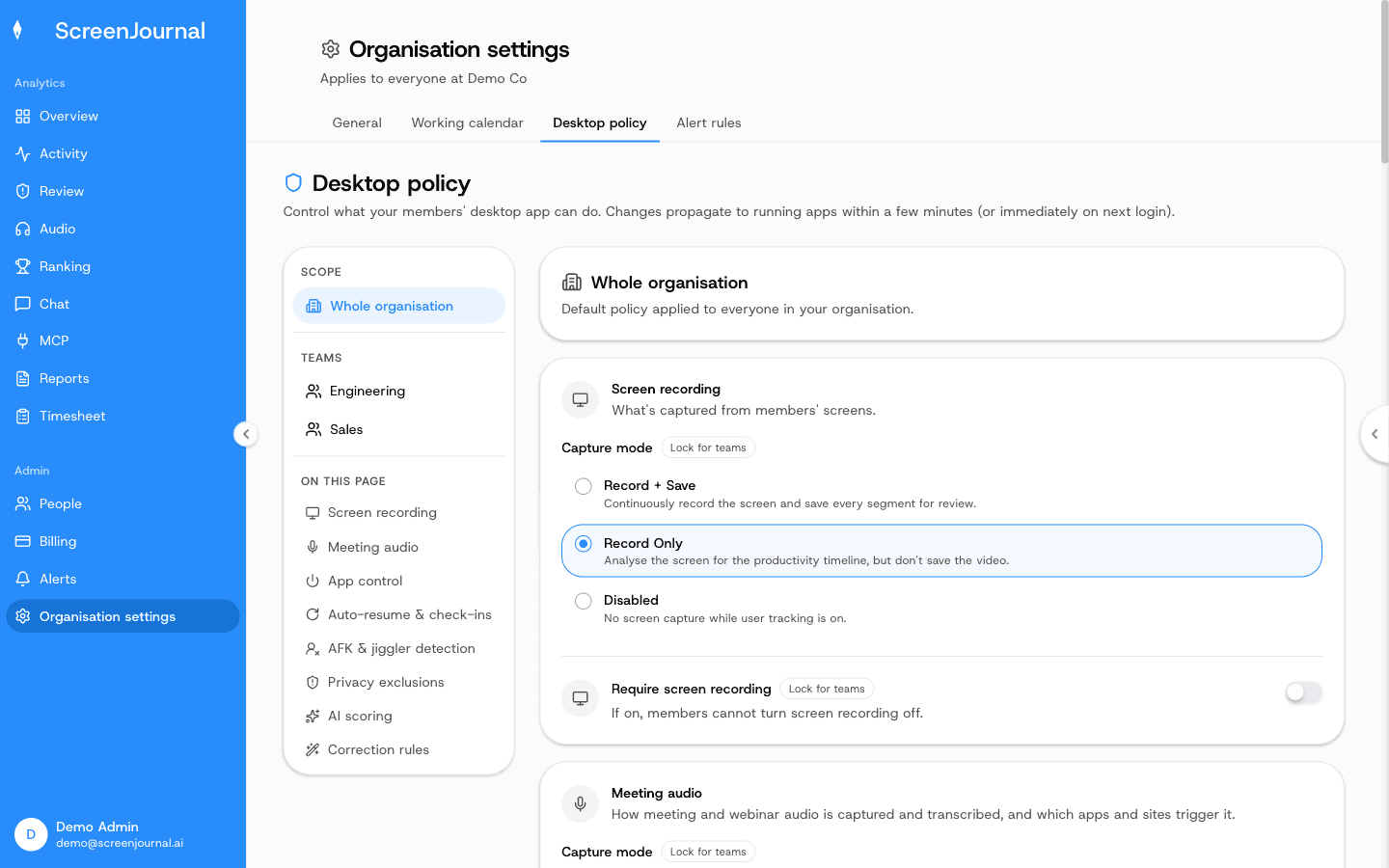
Proof: Organisation settings → Desktop policy, where capture mode, meeting audio, privacy exclusions and correction rules are set for the organisation or a team.
Can my employer see my screen with ScreenJournal?
Not as footage by default. ScreenJournal takes no screenshots and keeps no video unless a manager has opted in to keep video evidence, so by default there is nothing to watch back. Managers see derived insight: the timeline, timesheets and reports. Employees see their own data and, when the organisation allows it, redact segments of their own.
Is employee monitoring legal?
On company-owned devices it is generally lawful for legitimate business purposes, but rules vary by region and many require employee notice or consent. This is general information, not legal advice. Our plain-English guide to employee monitoring laws covers the main regions.
Does ScreenJournal comply with GDPR?
ScreenJournal is built around the data minimisation principle at the heart of GDPR: it never captures apps and sites on the organisation's privacy exclusion list, removes PII during processing, deletes raw screen data during processing by default, and gives employees redaction control. Confirm specifics against your own compliance requirements.
Management
Does employee monitoring hurt productivity?
Covert, surveillance-heavy monitoring can. Transparent, outcome-focused measurement tends to help. ScreenJournal shows employees exactly what managers see, sends no nudges until an admin writes an alert rule, and scores the work rather than the person. And because the chronicle preserves searchable history, observation gives something back to the employee: their own past work, findable.
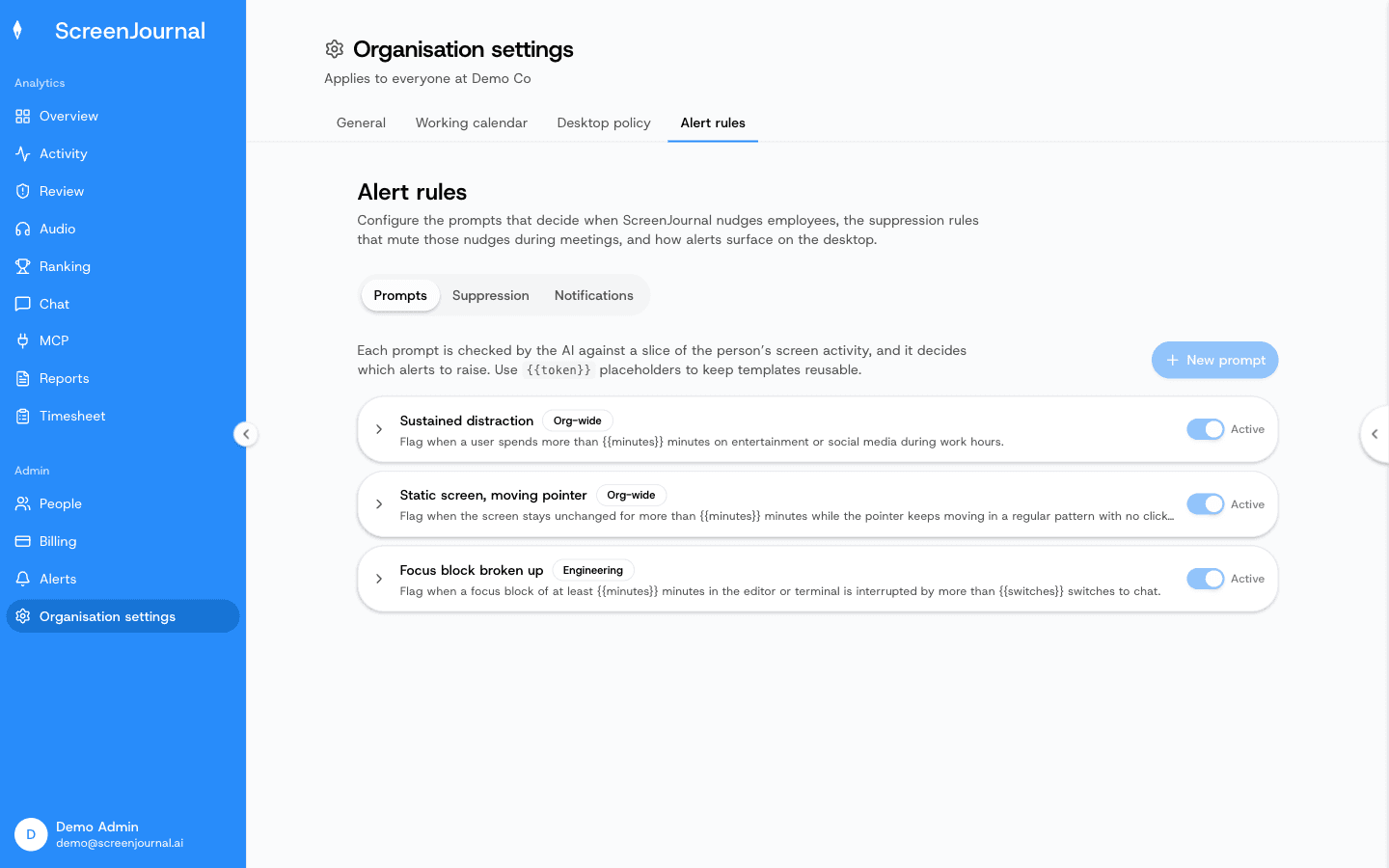
Proof: Organisation settings → Alert rules, where nothing fires until an admin writes a prompt.
How do I monitor remote employees without micromanaging?
Measure outcomes, be transparent about what is tracked, and use a tool that answers questions instead of streaming screenshots. With ScreenJournal you ask "how is the project going" and get an answer, so you check in once instead of watching all day.
Use cases
What are the main use cases for ScreenJournal?
Any industry and any role that uses a computer. The highest-intent segments today are BPOs and call centres (proof of work and billing accuracy without storing thousands of screenshots per agent), offshore teams (verified hours and real output across the time-zone gap), agencies (timesheets computed from tracked hours, without surveillance of creative teams), and engineering teams (progress tied to what actually shipped, including visibility into AI-assisted coding sessions, without keystroke logging).
Comparisons in brief
Is ScreenJournal an alternative to Hubstaff, Time Doctor, Insightful or Monitask?
Yes. Those tools typically store periodic screenshots and activity levels for a manager to review. ScreenJournal reads the work, measures real output, answers questions in plain English and, by default, deletes the raw screen data. The full comparison is on ScreenJournal vs screenshot trackers.
How does ScreenJournal compare to Teramind, Veriato or Controlio?
Those are surveillance suites that typically record screens continuously and log keystrokes for investigation. ScreenJournal does neither: it measures output, keeps a searchable derived history and discards footage by default. The full comparison, including when a surveillance suite is genuinely the right choice, is on ScreenJournal vs surveillance suites.
How does ScreenJournal compare to ActivTrak, WorkTime or Prodoscore?
Those measure app and website activity without reading the work itself, so they answer "how busy did the apps look". ScreenJournal reads the actual work, so it answers "what was produced".
How does ScreenJournal compare to Billables AI?
Different problems. Billables AI captures billable time for law firms through app integrations. ScreenJournal gives managers operational truth across a whole team, computes timesheets from tracked hours, and eliminates manual timesheets. Both are AI-native and neither stores screenshots.
See the work itself, not screenshots of it
Timesheets, reports and answers from the work your team actually did. Available for Windows and macOS, with Linux and mobile support coming soon.