What is ScreenJournal Evidence Mode?
Updated on 8 October 2026
Evidence Mode is the name this site uses for ScreenJournal's Record + Save capture mode: ScreenJournal keeps the recording behind each timeline segment instead of deleting it, so a manager can replay the segment from the timeline, and the clip behind an alert is kept for review. Recordings are kept for the policy's retention period, up to 3 months. It is off by default, switched on by an owner or admin in the desktop policy for the whole organisation or for a particular team, and disclosed to members when they sign the desktop app in.
By default ScreenJournal stores no footage. The default capture mode is Record Only, which is derive-and-discard: the screen is recorded as short-lived video, the work is read from it, and the video is deleted immediately during processing. Record + Save is the one deliberate exception, built for teams where a company needs to be able to look at what happened rather than only read about it.
Why does Evidence Mode exist?
Evidence Mode exists because some disputes need the recording, not the summary. A client questions a billed hour, an alert fires on a segment the member says was harmless, a compliance team needs to check what an export actually contained. The traditional answer is recording the whole workforce. Record + Save keeps replayable recordings where a company decides it needs them and the derive-and-discard default everywhere else.
Surveillance suites answer the same problem by recording everyone: typically continuous screen capture, keystroke logging and archived communications across whole departments, as the everyday mode of operation. That produces the evidence, but it also records hundreds of people who were never a risk, and it leaves the company holding an archive it must secure and explain. Record + Save narrows the trade: the company decides which teams need replayable recordings, and only those teams carry them.
How does Evidence Mode work?
Evidence Mode works in three steps. An owner or admin sets the capture mode, the desktop app keeps recordings under that policy, and the recordings are replayed from the pages where the work already appears.
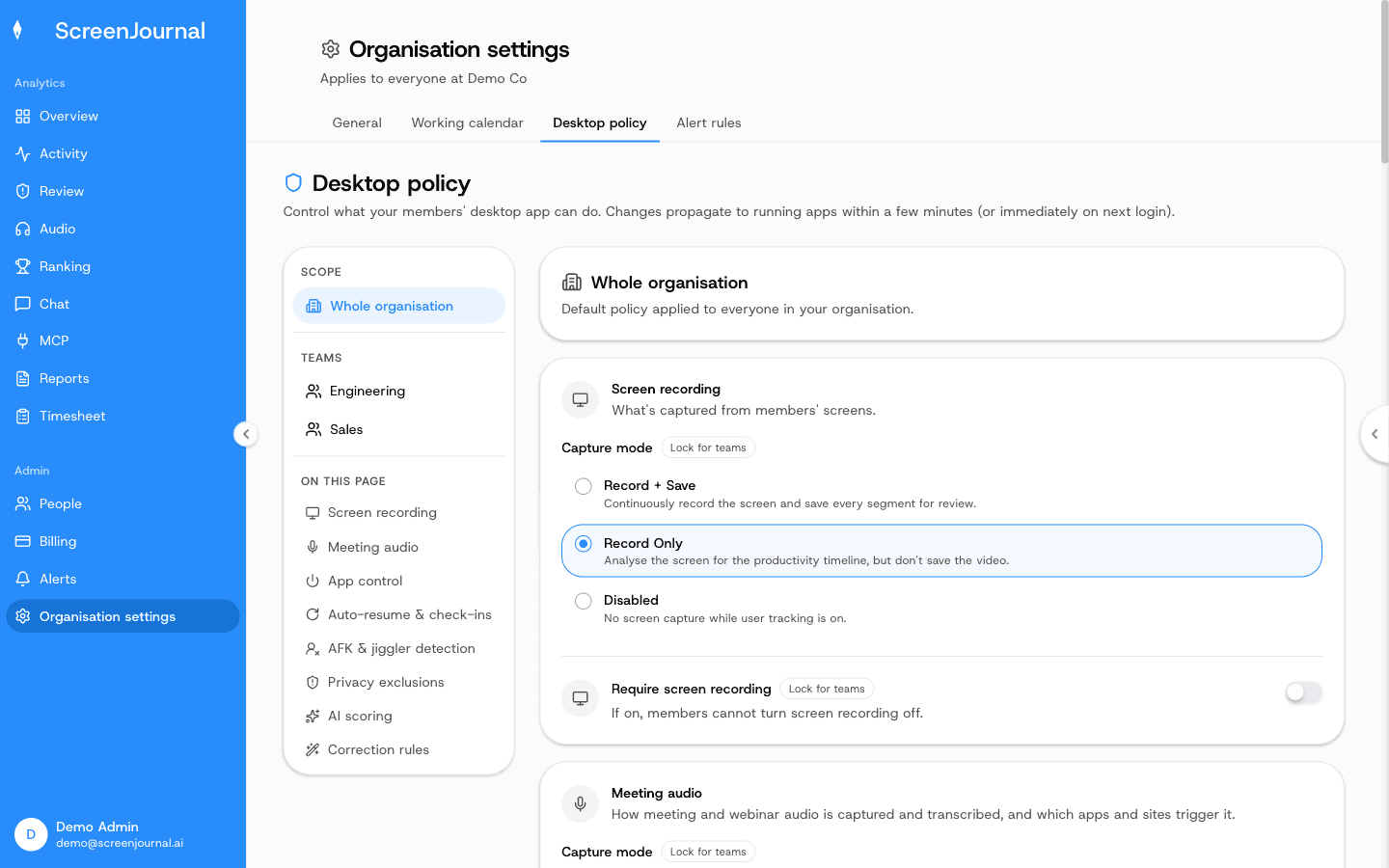
- Set the capture mode. Under Organisation settings → Desktop policy → Screen recording, choose Record + Save for the organisation, or override it for one team. A team manager can set it for their own team. The same policy carries a Retention period (how many days a recording stays on the member's device, up to a maximum of 3 months) and a Max local storage cap, with the oldest recordings deleted first. Changes reach running desktop apps within a few minutes.
- Keep, not just derive. For members under that policy, ScreenJournal still writes the work timeline exactly as before, and keeps the recording behind each segment alongside it instead of deleting it.
- Replay where the work is. A Play recording action appears on timeline segments on the Activity and Review pages, for anyone whose role already lets them see that member's activity. When an alert fires, the clip behind it is uploaded and kept, and appears as Play evidence clip in the Alerts log.
The timeline side is unchanged. Segments still carry the app, a duration, a plain-English description and a score, and the day still produces timesheets and reports, so a team on Record + Save loses none of the everyday value of the product.
Proof: Organisation settings → Desktop policy, where capture mode, meeting audio, privacy exclusions and correction rules are set for the organisation or a team.
What changes for an employee in Evidence Mode?
Three things change, and none of them changes silently. Recordings are kept rather than deleted during processing: stored in ScreenJournal's cloud for up to 3 months, and on the member's device only for the policy's local retention period. Segments retained as evidence for an alert cannot be redacted, by the employee, a manager or anyone else; every other segment follows the organisation's normal redaction settings. And the coverage itself is disclosed: when a member signs the desktop app in, the Workplace Monitoring Notice says the app may record their screen, their calls and meetings, and whole webinars they attend, depending on the organisation's settings, and they must acknowledge it before continuing, which is recorded with the notice's version and the time. While recording is on, the app's Settings → Recording panel shows the retention period and the storage recordings are using.
What does not change: ScreenJournal reads work output, not keystrokes, in any capture mode, and apps and sites on the organisation's privacy exclusion list are never captured, whatever the mode.
How is Evidence Mode different from a surveillance suite?
The difference is scope and default. A surveillance suite typically records entire departments continuously, with keystroke logging, as the everyday mode of operation. Record + Save is a capture mode a company switches on for the organisation or for particular teams, disclosed at sign-in, while the default deletes footage immediately during processing.
The table below compares the three postures side by side.
| Surveillance suites | ScreenJournal default | Evidence Mode (Record + Save) | |
|---|---|---|---|
| Who is covered | Typically whole departments or companies | Everyone, privacy-first | The whole organisation or the teams a company chooses |
| Screen footage | Typically continuous and archived centrally | Deleted immediately during processing | Kept in ScreenJournal's cloud for up to 3 months (and on the member's device only for the policy's local retention period); the clip behind a segment or an alert can be replayed |
| Keystroke logging | Typically yes | No | No |
| Disclosure | Varies per configuration | Members see the same activity view managers do | The Workplace Monitoring Notice acknowledged at sign-in, plus retention and storage shown in the app's Recording settings |
| Everyday output | Recordings to review | Timelines, timesheets, reports, answers | The same timeline, plus Play recording on its segments |
The full comparison, including Teramind, Veriato and Controlio specifics, is at ScreenJournal vs surveillance suites.
Who is Evidence Mode for?
Evidence Mode is for organisations and teams where being able to replay a segment matters: billing disputes that come down to what an hour contained, alert reviews where the member's explanation needs checking against the screen, or roles handling data that could leave the business. It is not for monitoring a whole workforce in the surveillance sense: recordings are kept for at most 3 months under a retention limit, and nobody sees more through them than their role already allows. If a security team needs continuous, centrally archived forensic recording of entire departments, a dedicated surveillance suite fits that requirement better.
A useful test: if you can name the team and the kind of dispute you need a recording for, Record + Save fits. If the honest answer is "everyone, just in case, forever", that is a surveillance posture, and ScreenJournal is deliberately not built for it.
Frequently asked questions
Is Evidence Mode on by default?
No. The default capture mode is Record Only, which analyses the screen for the timeline and keeps no video. Evidence Mode, the Record + Save capture mode, stays off until an owner or admin selects it in the desktop policy, for the whole organisation or for a particular team. Opted-in recordings are stored for up to 3 months.
Do employees know when Evidence Mode is on?
Yes. When a member signs the desktop app in, the Workplace Monitoring Notice says that, depending on the organisation's settings, the app may record their screen, their calls and meetings, and whole webinars they attend, and they must acknowledge it before continuing; the acknowledgment is recorded with the notice's version and the time. While it is on, the app's Settings → Recording panel shows the retention period and the storage recordings are using. There is no covert version of it.
Can entries be redacted in Evidence Mode?
Yes, under the organisation's normal redaction settings: administrators decide which roles may permanently delete segments, and nobody can until they do. The one exception is a segment already retained as evidence for an alert, which stays in the record.
Does Evidence Mode log keystrokes?
No. ScreenJournal reads work output on screen, not keystrokes, in any capture mode, including Evidence Mode.
What is ScreenJournal?
ScreenJournal is an AI work visibility tool that reads on-screen work as it happens, turns it into a detailed timeline of what each person actually did, and then, by default, deletes the raw screen data. Timelines accumulate into a searchable chronicle of everyone's work history, and from them ScreenJournal generates timesheets and reports automatically and drafts standup summaries on request, answering questions about any of it in plain English.
See the work itself, not screenshots of it
Timesheets, reports and answers from the work your team actually did. Available for Windows and macOS, with Linux and mobile support coming soon.