How do engineering teams use ScreenJournal?
Updated on 14 September 2026
Engineering teams use ScreenJournal to see what was actually produced each day: the features shipped, the bugs fixed, the reviews done, including work completed in AI-assisted coding sessions. Managers get timelines, reports and plain-English answers instead of screenshots, keystroke logging or activity percentages, and engineers keep a searchable record of their own work.
Why is engineering work so hard to see?
Because the visible signals barely correlate with the output. An engineer can spend a morning reading a codebase, sketching a design or reviewing a colleague's pull request and produce enormous value while an input tracker records near idleness. Commit counts and pull-request throughput are proxies too: they miss the debugging day that saved the release, and they reward volume over judgement. Screenshot tools solve none of this; they simply add an archive that engineers, of all people, resent most. So managers fall back on status meetings and standups, because nothing else tells them what happened, and the people doing the deepest work look the least busy.
What happens to visibility when AI writes the code?
The gap gets worse, because the work is increasingly done with AI. An engineer's day now includes prompting a coding assistant, reviewing what an agent produced and steering it through the next iteration. Typing time collapses while output rises, so activity percentages and hours-based measures lose whatever meaning they had: to an input tracker, an engineer carefully supervising an agent looks identical to one who wandered off and let it run. The question a manager needs answered has quietly changed from "was this person active" to "who watches the AI, and what did the pairing actually produce".
ScreenJournal answers that question the only way that survives the shift: the timeline shows what was actually produced, whoever or whatever typed it. That includes visibility into AI-assisted coding sessions, recorded the same way as any other work on screen. For teams that want more, ScreenJournal is launching Tempo, its Claude Code analytics: it will read the local repository and Claude Code's session files to analyse AI-assisted coding sessions in depth. Launching soon.
How does ScreenJournal show what an engineering team produced?
ScreenJournal is an AI work visibility tool that reads on-screen work as it happens, turns it into a detailed timeline of what each person actually did, and then, by default, deletes the raw screen data. Timelines accumulate into a searchable chronicle of everyone's work history, and from them ScreenJournal generates timesheets and reports automatically and drafts standup summaries on request, answering questions about any of it in plain English.
That deletion is the default and the design; a manager can opt in to Evidence Mode where video evidence is needed.
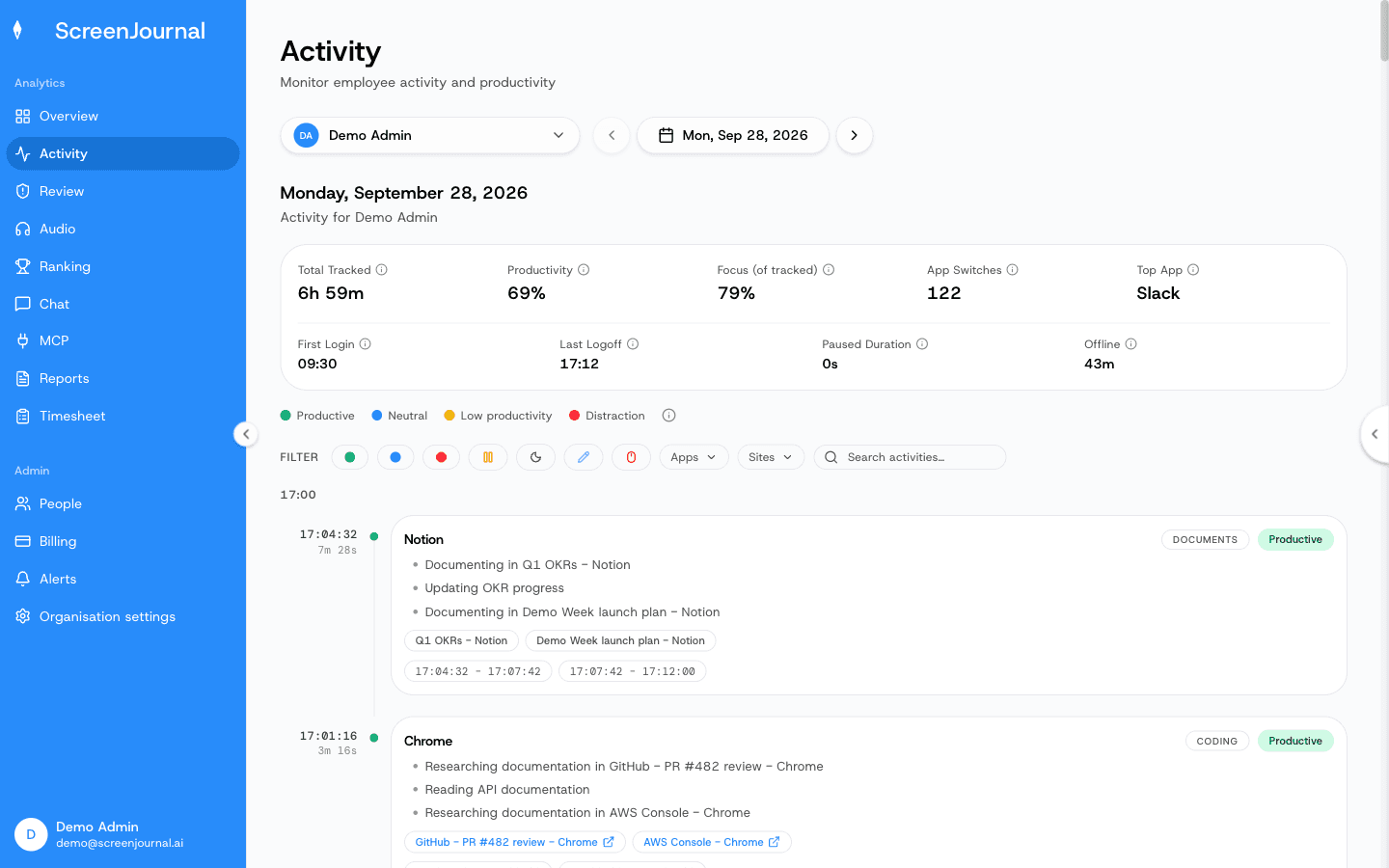
For an engineering team, the unit of visibility is the timeline entry. Each entry carries an app badge, a duration, a plain-English summary of what was done and a productivity score, and expands for context. Instead of forty screenshots, a manager reads entries describing the migration that was written, the review that was completed and the incident that was investigated. Scores attach to the work rather than the person; an admin can correct a misread session's score, and standing correction rules fix an app or site's score going forward. The full anatomy is on the work timelines page.
Proof: the Activity page, one person's day as scored segments with the app, time range, duration and an AI-written description; hover a segment for Correct score, Play recording and Redact, each gated by role and policy.
What does the work chronicle do for an engineering team?
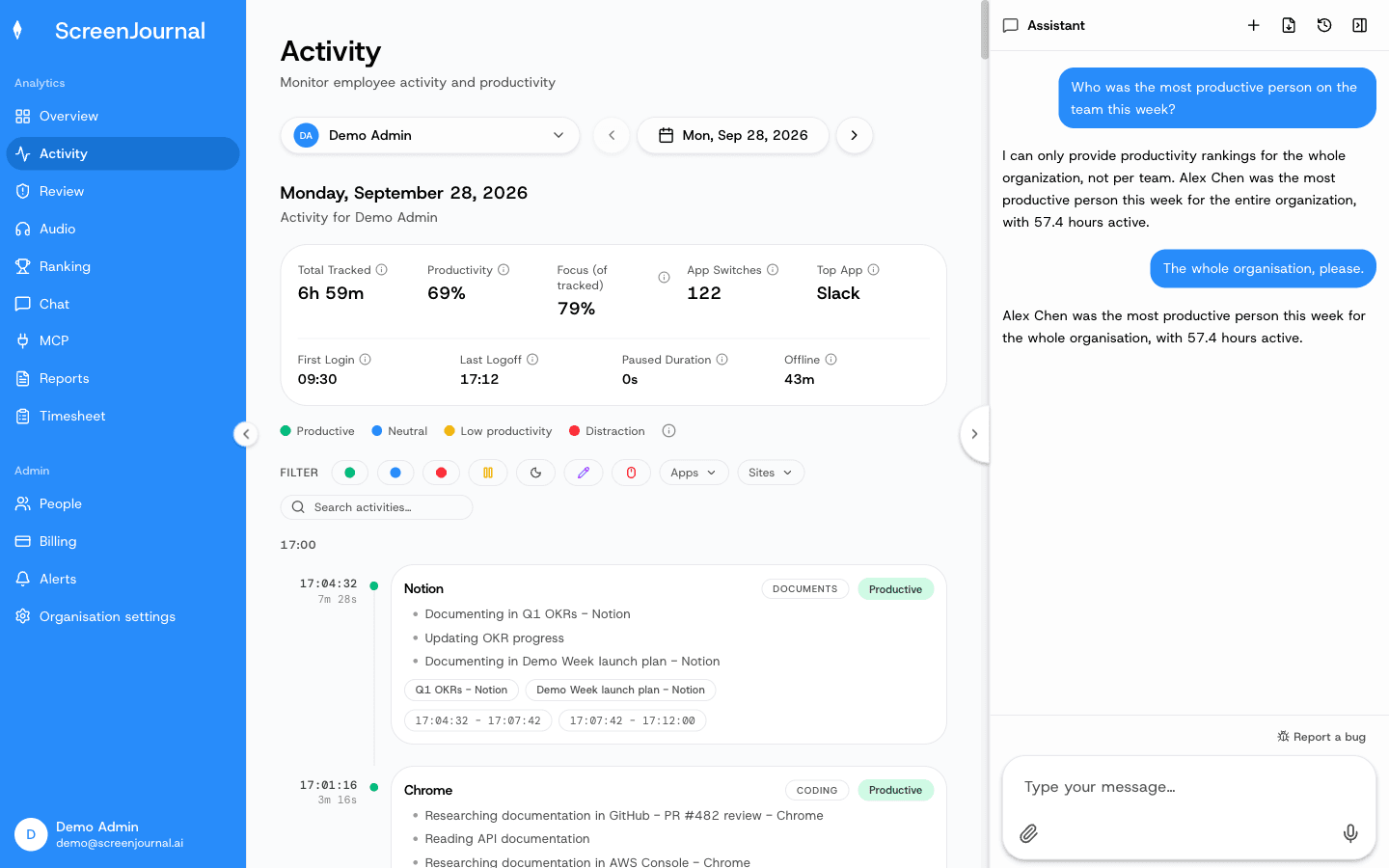
It makes the team's past work findable. Timelines accumulate into a chronicle, so "how did we fix the webhook timeouts last quarter" is a question you ask, not an archaeology session through chat logs and stale wiki pages. A new engineer can see how the team actually ships rather than how the onboarding doc says it ships, and a colleague in support can check how a fix went out without interrupting the person who shipped it. Questions go through the ScreenJournal chat or the ScreenJournal MCP, permission-scoped by role.
Proof: the Assistant chat (Ask AI) open beside the dashboard, showing the data it consulted before answering.
What do engineering managers get day to day?
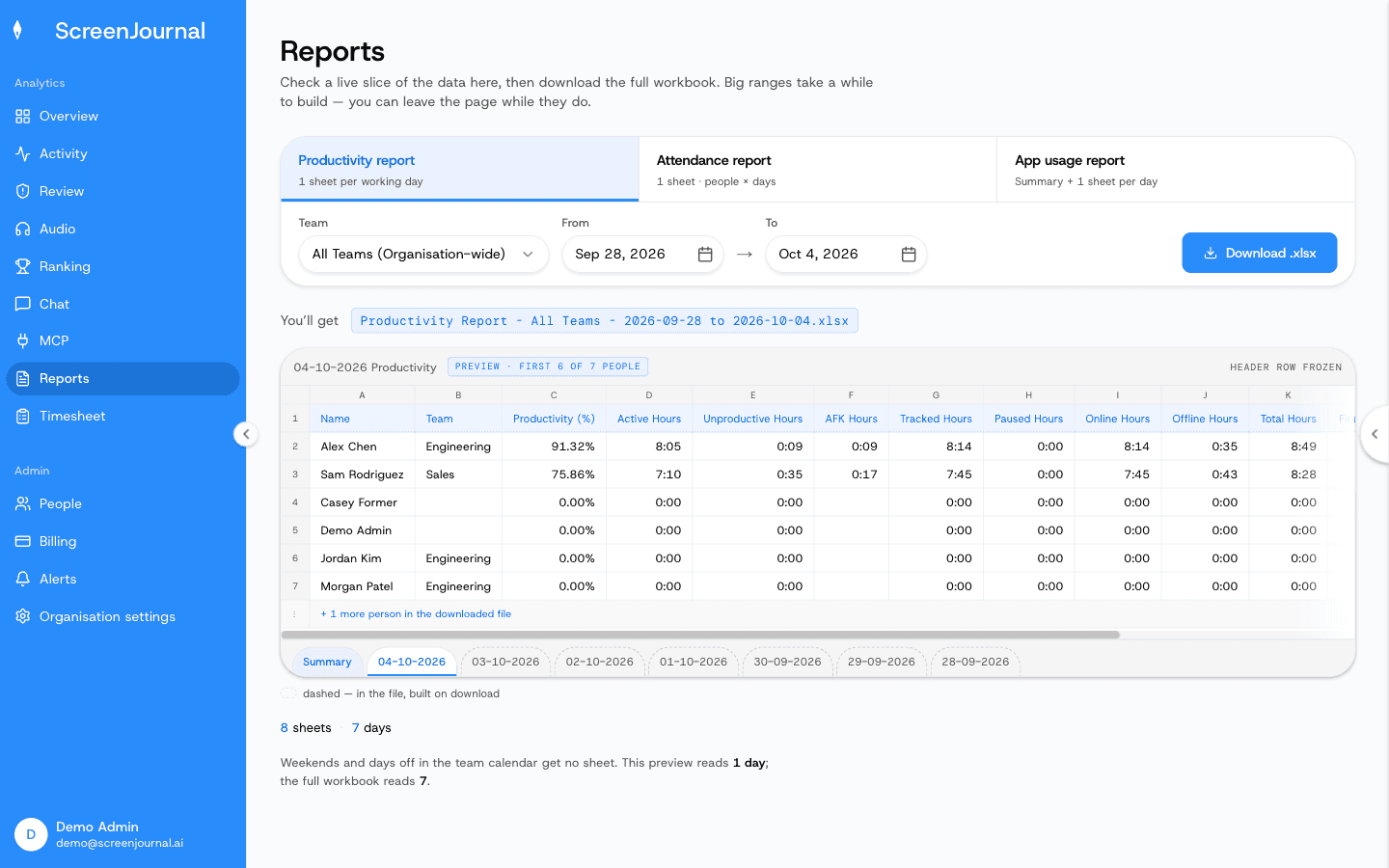
Answers, mostly. The Assistant chat (Ask AI) opens beside any page and answers from the derived record rather than footage: who is stuck, what is about to slip, where the week went. The Overview dashboard, the weekly Ranking and downloadable Excel reports cover productivity, attendance and app usage. And for consultancies and teams that bill engineering time, the Timesheet page turns tracked hours into pay per person per week or month, with overtime and exclusions. Nudges are off until an admin writes an alert rule: ScreenJournal is built to answer questions, not to ping people into looking busy.
Proof: the Reports page, with the report chooser, scope and date range, and a live preview of the workbook before download.
Is ScreenJournal surveillance of developers?
No. It reads work output, not keystrokes, and by default it keeps no footage of anyone. Apps and sites on the privacy exclusion list are never captured, and an engineer can redact segments on their own timeline when the organisation allows it. Engineers also see the same activity view managers do, so there is no hidden dashboard behind the one they are shown. For how this differs from tools that score app usage instead of reading the work, see ScreenJournal vs activity analytics.
Proof: the Activity page, one person's day as scored segments with the app, time range, duration and an AI-written description; hover a segment for Correct score, Play recording and Redact, each gated by role and policy.
When is ScreenJournal the wrong fit for an engineering team?
When all you want is repository analytics. If DORA metrics or pull-request cycle times are the whole requirement, a Git analytics tool reads those directly from your repos and is the lighter choice. ScreenJournal reads the work on screen, so its value is the fuller picture: the design, review, debugging and AI-assisted work that never shows up as a commit. It also does not judge code quality; that remains the job of code review and CI.
Engineering team FAQs
Does ScreenJournal log keystrokes?
No. It reads work output, not keystrokes.
Can ScreenJournal see work done with AI coding assistants?
Yes. ScreenJournal provides visibility into AI-assisted coding sessions. The timeline records what was actually produced during the session, in which apps and for how long, the same way it records any other on-screen work. Tempo, ScreenJournal's Claude Code analytics, is launching soon and will go deeper by reading the local repository and Claude Code's session files.
Does ScreenJournal store screenshots of our code?
No. By default raw screen data is deleted during processing, and PII is removed during processing; what remains is the derived timeline: plain-English entries with an app, a duration and a score. A manager can opt in to keep video evidence for the organisation or a team, stored for up to 3 months.
Do engineers see what their manager sees?
Yes. Employees see the same activity view managers do, and an admin can correct any score the AI misread.
Can we query the team's work history from our own AI tools?
Yes. Past activity is searchable through the ScreenJournal chat and the ScreenJournal MCP, permission-scoped by role.
See the work itself, not screenshots of it
Timesheets, reports and answers from the work your team actually did. Available for Windows and macOS, with Linux and mobile support coming soon.