What is an AI timesheet?
Updated on 14 September 2026
An AI timesheet is a timesheet computed from the work itself rather than typed into a timer. ScreenJournal reads the day's on-screen work into a timeline, and the Timesheet page turns those tracked hours into billable hours, overtime, days worked and the amount due, per person, per week or month. You review a sheet instead of reconstructing your week.
Manual timesheets fail in a predictable way: they are written after the fact, from memory, usually under deadline. Timers fail differently: they depend on someone remembering to start and stop them, and they record duration rather than substance. ScreenJournal removes both problems by making the timesheet a by-product of the work timeline, the detailed record it already writes while work happens.
How does ScreenJournal build a timesheet?
ScreenJournal builds a timesheet in three steps: the timeline is written as you work, the Timesheet page computes pay from the tracked hours, and a manager reviews the days that need it.
- The timeline comes first. As work happens, ScreenJournal reads on-screen activity and writes a timeline of the day. Each segment carries the app, a time range and duration, a plain-English description of what was done and a productivity score. By default the raw screen data is deleted during processing; the timeline is what remains (a manager can opt in to Evidence Mode to keep video evidence).
- The sheet computes itself. The Timesheet page takes each person's tracked hours and applies their pay settings: an hourly rate, which weekdays count (from the organisation's working calendar), the normal daily hours beyond which time is overtime, and the overtime multiplier. There is no AI step here and nothing to generate: the numbers follow straight from the record.
- Review the days, not the week. Every day is a row. Open its Details to see the segments behind the hours, exclude any single segment, or use Exclude flagged to drop every below-productive segment in one go. Untick a day to leave it out entirely. Excluded time is subtracted and every total reflows.
How is an AI timesheet different from automatic time trackers like Timely, Toggl and TimeCamp?
The difference is the source material. Automatic time trackers fill a timesheet from app-time patterns: which application, window or document was open, for how long, and which keyword it matched. ScreenJournal computes the timesheet from a record of the work itself: what was actually done inside those applications, and how productive it was.
The best-known automatic fillers all work on names and durations. Timely's background Memory tracker records the apps, documents and websites you touch, and its AI drafts timesheet entries with suggested projects for you to review. Toggl Track is a timer first; its desktop Timeline logs any app or site used for more than ten seconds, and its Autotracker can start or suggest an entry when a window title matches a keyword you set. TimeCamp matches keywords in window titles and URLs and assigns the tracked time to projects automatically.
That approach genuinely removes timer discipline, and for a personal, self-managed record of where the hours went, these tools do that job well. What their entries cannot contain is the work. A window title can say you were in Photoshop for two hours and forty minutes; it cannot say what was produced, or whether the time was new work or rework. Someone still has to remember, and keyword rules need tending as clients and projects change.
ScreenJournal starts from the other end. Because it reads the work as it happens, the segments behind every hour describe what was done, and each carries a score, so a manager deciding what to bill is looking at the work rather than at a window title. The one-sentence summary of the difference: an AI-filled timer infers your timesheet from app time, while ScreenJournal computes it from a record of the work itself.
| AI-filled timers (Timely, Toggl, TimeCamp) | ScreenJournal | |
|---|---|---|
| Source of an hour | App, window and document names, durations, keyword rules | Recorded segments of the on-screen work, each described and scored by AI |
| What the sheet shows | Time spent per app or per matched project | Billable hours, overtime, days worked and amount due per person, with the scored segments behind each day |
| Reviewing the draft | You scan the day's entries and adjust them yourself | A manager excludes a day or a segment, or drops every below-productive segment in one click |
| What is stored | A log of app, site and document names with durations | The derived timeline; raw screen data is not stored by default (a manager can opt in to keep video evidence for up to 3 months) |
The same distinction separates ScreenJournal from trackers that store screenshots as proof of work; see ScreenJournal vs screenshot trackers.
What does the timesheet look like?
A computed sheet, not a blank form. For one person and one weekly or monthly period, four cards summarise Billable hours (regular plus overtime), Overtime, Days worked (billed days out of days worked) and Amount due. Below them a table has a row per day: date, productivity score, regular and overtime hours, the hourly rate and the amount, with a Details link that opens that day's segments. Hours are rounded to a tenth and amounts are in US dollars.
Proof: the Timesheet page, with billable hours, overtime, days worked and amount due for one person and a row per day that opens into its segments.
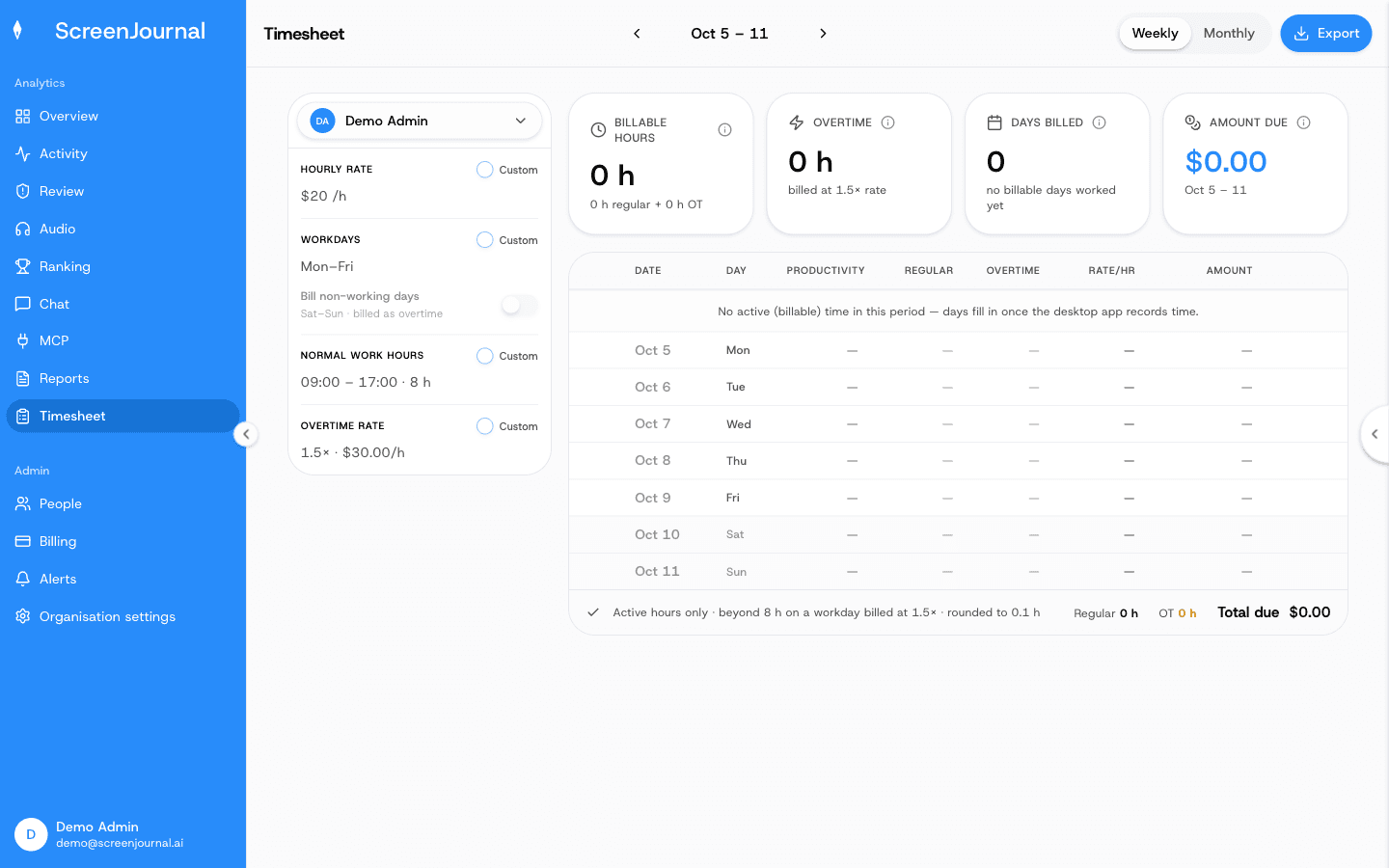
Pay settings sit in a panel beside the sheet. Each shows the organisation default, and a manager can tick Custom to override it for the selected person only: hourly rate, workdays, whether non-working days are billed (as overtime), normal work hours and the overtime rate. Export downloads the visible period as a CSV with one line per day and a totals row, ready for Excel, payroll or an invoicing tool.
Who are AI timesheets for?
Agencies get billable hours computed from real work rather than reconstructed on Friday, which makes both billing and margin conversations start from what was actually done. One honest limit: rates are per person, not per client, and ScreenJournal does not map hours to clients or projects; the CSV is what feeds your invoicing tool.
BPOs and offshore teams get verified hours without a screenshot archive: every hour opens into the segments behind it, which answers the client's proof-of-work question more directly than an activity percentage.
Internal teams get honest time allocation for capacity and cost questions without asking anyone to run a timer. And employees get their side of the bargain: the work itself is what gets recorded and recognised, timers and jigglers stop mattering, and they can read their own sheet at any time.
AI timesheet FAQs
Do I still need to start a timer?
No. ScreenJournal writes the work timeline automatically as work happens, and the Timesheet page computes billable hours, overtime and the amount due from those tracked hours. There is no timer to start, stop or remember.
How accurate are AI-generated timesheets?
Every hour on the sheet traces back to recorded segments. Open a day's Details and you see each segment with its time, activity and productivity score, so a disputed hour is checked against what was actually done rather than argued from memory. Anything that should not be billed is excluded with one click, and the totals reflow.
Does ScreenJournal store screenshots to build timesheets?
No. ScreenJournal takes no screenshots. By default it reads the screen only long enough to understand the work, then deletes the raw screen data during processing, so there is no footage behind your timesheet; a manager can opt in to keep video evidence for the organisation or a team, stored for up to 3 months.
Can I fix my timesheet before anyone sees it?
Employees see their own sheet read-only; managers make the corrections. A manager can untick a whole day, exclude a single segment, or drop every below-productive segment at once, and the exclusions are stored so everyone opening that period sees the same sheet. Employees can explain gaps on their own timeline with a manual entry, and redact segments when the organisation grants them that permission.
What is ScreenJournal?
ScreenJournal is an AI work visibility tool that reads on-screen work as it happens, turns it into a detailed timeline of what each person actually did, and then, by default, deletes the raw screen data. Timelines accumulate into a searchable chronicle of everyone's work history, and from them ScreenJournal generates timesheets and reports automatically and drafts standup summaries on request, answering questions about any of it in plain English.
See the work itself, not screenshots of it
Timesheets, reports and answers from the work your team actually did. Available for Windows and macOS, with Linux and mobile support coming soon.